


UploadWords.com is a free browser-based text analysis tool. Paste in text or upload a file, and it returns a word count, a list of top keywords, and a visual word cloud.
This UploadWords.com review looks at what the tool actually offers based on its interface, who it suits, and where it falls short compared to older, more established word counters.
Quick verdict: it’s a clean, single-purpose tool that does one job without asking for a sign-up. It won’t replace a full SEO content tool, but for a fast word count or keyword glance, it does what it promises.
Key Details at a Glance
| Detail | Information |
| Website Name | UploadWords.com |
| Tool Type | Free online word count, keyword, and word cloud generator |
| Input Methods | Paste text directly, or upload a file |
| File Support | .txt files, up to 4MB |
| Cost | Free, no visible paywall on the core features |
| Account Required | No sign-up shown to use the tool |
Disclosure: This is not an official page of UploadWords.com and is not affiliated with or endorsed by the website. As mentioned in the title, this article provides an independent review of UploadWords.com’s tool and general information. Their Official Site: UploadWords.com
Pros of UploadWords.com’s Tool
✅ No sign-up required to use the core features
✅ Three useful outputs (count, keywords, cloud) from a single paste
✅ Stopword removal and minimum word length give more control than a basic counter
✅ Word cloud downloads as a PNG directly from the page
✅ Free with no paywall visible on the main features
Cons of UploadWords.com’s Tool
❌ File upload limited to .txt at 4MB, no support for Word or PDF files shown
❌ Privacy claim isn’t independently verifiable from the interface alone
❌ No visible way to save or compare past analyses between sessions
❌ Fewer advanced features than dedicated SEO keyword-density tools
Real-World Accuracy Test: Same Document, Three Tools
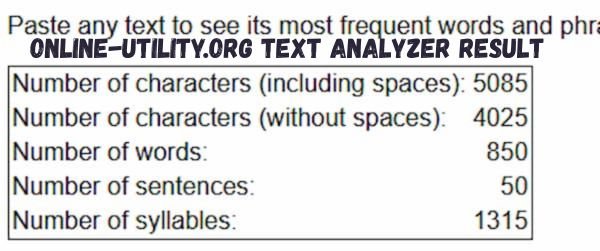
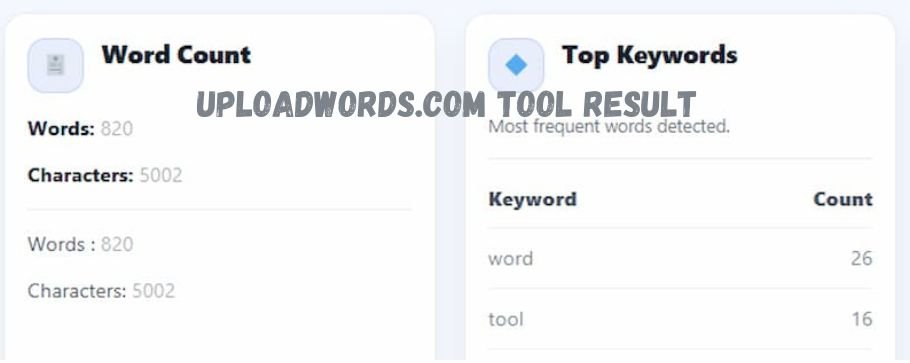
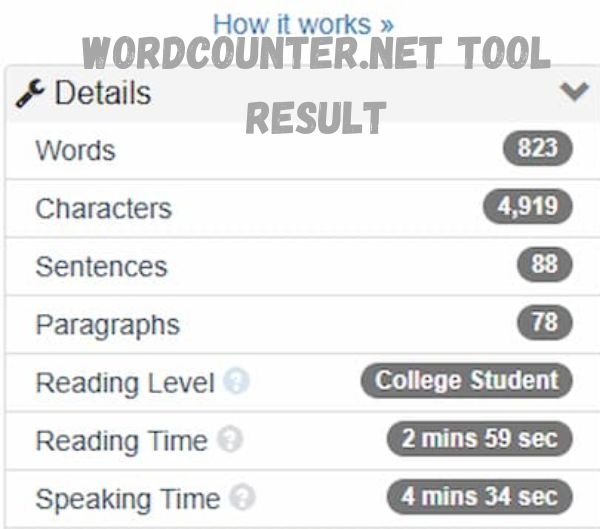
To see how reliable UploadWords.com’s numbers actually are, I ran the exact same document through it alongside two established alternatives: WordCounter.net and Online-Utility.org’s Text Analyzer.
| Tool | Word Count | Character Count | Sentences | Extra Metrics |
| WordCounter.net | 823 | 4,919 | 88 | Paragraphs (78), reading level (College Student), reading time (2:59), speaking time (4:34) |
| UploadWords.com | 820 | 5,002 | Not shown | Top keywords list only |
| Online-Utility.org | 850 | 5,085 (with spaces) / 4,025 (without) | 50 | Syllable count (1,315) |
None of the three tools returned the same word count on identical text, a spread of 30 words between the lowest and highest result. Character counts vary even more, partly because Online-Utility splits its count with and without spaces while the other two don’t specify which method they use.
The sentence count gap is the most telling result. WordCounter found 88 sentences in the same document where Online-Utility found only 50. That’s a difference in how each tool defines a sentence break, not evidence that either is wrong, but it’s a reason not to treat any single tool’s reading-level or reading-time estimate as exact.
UploadWords.com landed in the middle on raw word count but returned the least additional data of the three: no sentence count, no reading level, no syllable count, just words, characters, and a keyword list.
What the Tool Actually Does
The interface splits into three panels: Word Count, Top Keywords, and Word Cloud. You paste or upload text once, hit Analyze, and all three update together.
Word Count
This panel shows a running total of words and characters. Simple and immediate, which is exactly what most people opening a word counter actually want.
Top Keywords
This panel lists the most frequently occurring words in your text, ranked with a count next to each one. Useful for a quick check on repetition before publishing something.
Word Cloud
The third panel builds a visual cloud from your text, sized by word frequency. A “Download PNG” button lets you save the image directly, handy if you want a quick visual for a presentation or social post.
Customization Options
Two settings sit below the input box:
- Remove stopwords — a toggle that filters out common words like “the” and “and” so the keyword and cloud results focus on meaningful terms
- Minimum word length — a number field (default 2) that excludes very short words from the analysis
Both are small touches, but they matter for keyword analysis. Without stopword removal, a word cloud tends to fill up with filler words instead of anything useful.
A Note on the Privacy Claim
The site states that text is “processed securely and temporarily for analysis only.” That’s a reassuring line, but it’s a claim on the page, not something verifiable just by looking at the interface.
If you’re pasting anything sensitive, treat that statement the way you’d treat any tool’s privacy claim: check the actual privacy policy before uploading confidential or client text.
Alternatives Worth Comparing
- WordCounter.net — a longer-established word and keyword density tool with a broader feature set
- Online-Utility.org Text Analyzer — similar keyword frequency breakdown, no upload limit issues
- Google Docs word count — built-in and sufficient if you just need a raw count with no keyword analysis
Overall Verdict
| Category | Rating / Detail |
| Best For | Quick word counts, keyword checks, or a fast word cloud image |
| Not Recommended For | Analyzing large documents (over 4MB) or non-.txt files |
| Pricing | Free, no account needed |
| Ease of Use | Simple, single-page interface with clear labels |
| Standout Feature | Word cloud with direct PNG download |
| Final Verdict | A solid, no-friction tool for a quick text check, not a full SEO suite |
Should You Use UploadWords.com’s Tool?
Yes, for quick, low-stakes text checks. If you need to analyze large files, non-text formats, or want deeper SEO keyword density metrics, a more full-featured tool will serve you better.
Other Post: Headway Review
Frequently Asked Questions
Is UploadWords.com’s tool really free?
Yes, the core word count, keyword, and word cloud features show no paywall or sign-up requirement.
What file types does it support?
Only .txt files, up to 4MB. Larger files or other formats like .docx or .pdf aren’t supported based on the interface.
Is my text stored after I use the tool?
The site claims text is processed temporarily and not stored, but this isn’t independently verifiable without checking the actual privacy policy.
Can I download the word cloud image?
Yes, there’s a direct “Download PNG” button under the word cloud panel.
Is this better than WordCounter.net or similar tools?
It’s simpler and faster for a quick check, but more established tools offer deeper keyword density analysis if that’s what you need.